

Privacy, That's Apple. reads the opening headline on https://apple.com/privacy. As this site reflects, Apple has differentiated itself by going to great—and often, commendable—lengths to help protect its users' privacy, and markets a number of privacy features as benefits over its competition.
Mail Privacy Protection is one of those features. I'll also refer to it as MPP in this article. MPP is part of Apple's Mail app for both macOS and iOS. The name sounds like a no-brainer...who doesn't want privacy around email? And, if you have an account setup with Mail, you very likely have enabled this feature. I did.
But...what if, by doing so you are actually reducing your email privacy? Curious? Read on.
What's Mail Privacy Protection (MPP)?
Here's how Apple describes the feature, which was first introduced in 2021 with iOS 15:
Here's the narrative from the Mail Privacy Protection legal page:
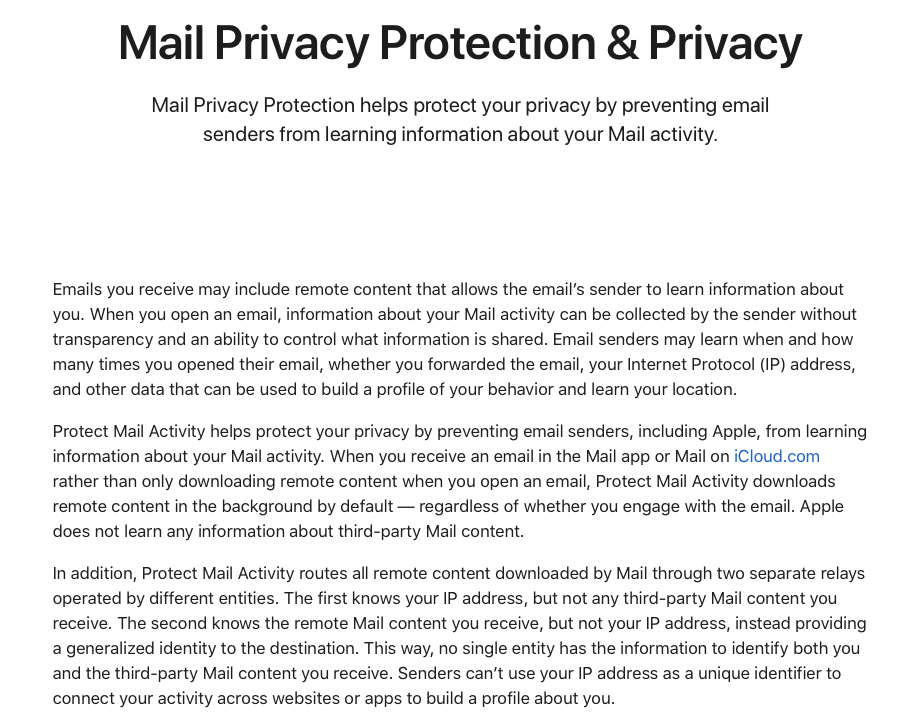
So it seems Mail Privacy Protection is designed to do two key things to help protect your email privacy:
- Hides your IP address using an elaborate two-step process, so senders can't identify your IP address, or use it to correlate your email activity with other online activity.
- Automatically opens remote email content in the background to help prevent a sender from tracking if—or when—you actually read their email.
Sounds great! What's the catch?
While testing early builds of App Iris, I loaded up an App Privacy Report from one of my iPads. By default, apps are sorted by activity level when you open a report. Guess what was at the top of the list? Apple Mail. It had generated more connections than any other app on this device. Visually, it stood out like this:
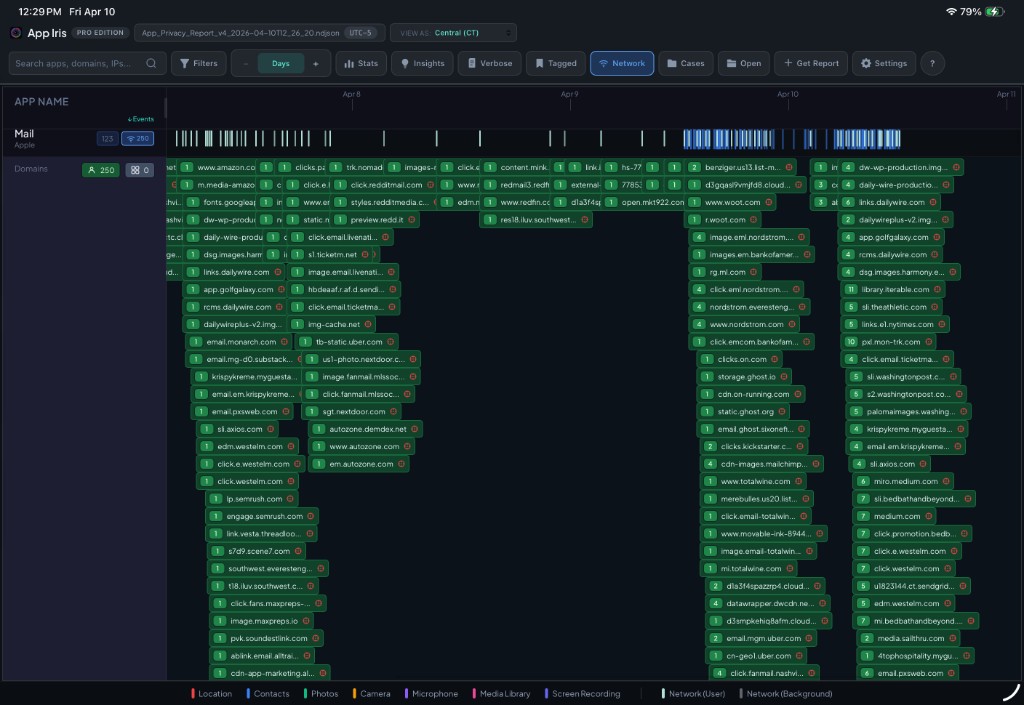
Each green bar denotes a specific web address contacted by Mail. And there are many more that aren't shown. On the left side, App Iris indicates there are 250 unique sites that have been contacted by the Mail app during the prior week.
This stood out as interesting on a few fronts:
-
I don't typically use Apple Mail. Although I had configured it to sync one of my GMail accounts, I couldn't remember the last time I had actually used Mail on this device.
-
In App Iris, green connections denote User-Initiated connection events, as opposed to App-Initiated connections. I certainly wasn't using Apple Mail at 4am. (If you're interested in learning more about categorization, Apple covers it here).
-
Every connection to a domain is tagged with a red location icon in App Iris. This means Apple has flagged each as a domain that "...potentially collects information across apps and sites, and potentially profile[s] users." These are the connections that we'd want to protect.
Digging in, I confirmed that the connections identified in the Privacy Report were definitely making it out to the internet. My DNS and firewall logs recorded name lookups and direct outbound connections at the exact second to the sites shown in App Iris. Although the native iOS interface doesn't show it, App Privacy Reports contain sub-second timestamps of events, which helps tremendously when correlating against other telemetry.
So what was causing this?
As you probably have guessed by now, I discovered the direct connections were related to the Mail Privacy Protection feature, which was enabled in the Mail app settings on my device.
To check your settings: On iOS, navigate to Settings -> Apps -> Mail -> Privacy Protection. On macOS, open the Mail app -> click Settings, then click the Privacy icon.
Once I turned it off, the connections stopped.
Wait, Direct Connections? Isn't MPP designed to hide my IP address?
Although I knew what was generating the connections, I didn't know why MPP wasn't actually hiding my IP address!
I eventually found the answer. And it wasn't very satisfying.
In the settings for the specific WiFi connection that my iPad was using at home, I had turned the Limit IP Address Tracking option off. Why? At home, I force all DNS traffic through an encrypted DNS service, for logging and content filtering. Private Relay effectively bypasses these services—so I turn it off at home. Many company networks, as well as consumer VPN, security, and ad-blocking apps and services may also block or bypass Private Relay. There are other places you may find it blocked, such as on some retail store and guest WiFi networks, and on airplanes. You may have seen the message This network isn't compatible with Private Relay at some point when searching for connectivity.
What I hadn't paid close enough attention to was the fine print under this setting:

Did you catch that? Limit IP address tracking by hiding your IP address from known trackers in Mail and Safari. I intuitively understood this would affect web browsing with Safari, but I incorrectly assumed that the reference to Mail was just a non-technical way of reminding us that any links or images I also open within a Mail message would be handled just as if I opened a link in Safari. No big deal, right?
The reality is much different. If you turn Limit IP Address Tracking off, instead of hiding your IP address, Mail Privacy Protection starts advertising it!
What it should say is:
Note: When this is turned off, Mail Privacy Protection will continue to visit the links in your emails, so that marketers and other contacts can stay informed of your IP address automatically—even for messages you don't have time to open!
In all seriousness, considering that the feature has a critical dependency on Private Relay, I would expect a much stronger warning.
I searched Apple's documentation for any acknowledgement of this dependency. The results were underwhelming:
- Settings -> iCloud-> Private Relay describes the benefits of Private Relay for protecting browsing activity in Safari only.
- Apple's main support document for iCloud Private Relay also highlights Safari only.
- Apple's legal document for iCloud Private Relay, last updated in December 2025, doesn't mention Mail or Mail Privacy Protection at all.
- The original iCloud Private Relay Overview whitepaper from 2021 mentions Safari seven times and Mail zero times. It calls out that it protects "... all web browsing in Safari and unencrypted activity in apps, adding both privacy and security benefits." This would ostensibly exclude encrypted connections used to download Mail content.
Moreover, when connecting to a WiFi network which blocks DNS resolution of mask.icloud.com (the Private Relay gateway), the user notice states only "
The only acknowledgement I could find is a single footnote, buried at the bottom of a table in the macOS Mail User Guide:
Note: If you turned off the option in Network settings to limit IP address tracking for your Wi-Fi or Ethernet network, your IP address isn’t hidden from senders when using the network.
There's no equivalent note in the iPhone or iPad guide. So the users most likely to have a need to disable Private Relay—mobile users on the go—get no other documentation about the dependency.
It's not as if Apple is unaware of this interaction. When Private Relay was first released in iOS 15, the equivalent setting was originally named iCloud Private Relay. In iOS 16, it was renamed to Limit IP Address Tracking — suggesting that Apple understands the scope.
Which raises the question: Why not simply implement an automatic fail-safe that suspends background caching when Private Relay is disabled or unavailable?
While writing this article, I discovered that I'm not the first to have noticed the interaction between these settings. The most substantive is Adam Engst's June 2022 TidBITS piece, where Engst maps the relationship between these settings. He raised—but did not address—the central question that I set out to answer here, noting that network analysis was beyond his scope. Other 2022 discussions on Ycombinator's Hacker News and Reddit, reference aspects of this behavior.
A Modern Web Bug?
So, why does this really matter? User tracking for targeted marketing and analytics gets a lot of attention, but this isn't the only privacy concern. What if a bad actor wants to keep tabs on your IP address, device type, or general location?
In my early DFIR career, we used simple HTML tags in emails to help unmask the identity of wrongdoers hiding behind the relative anonymity that some email accounts provided. Send a reply that contains a unique link to an image hosted on a remote server, and wait. With any luck, sooner or later we'd have a web server log containing the user's IP address and web browser details. To counter this type of identification, email clients began blocking the automatic loading of remote images and other content by default, unless the user affirmatively consented on a per-message basis. If a message looks suspicious, simply don't open the remote content, and the sender will not know you've received the message.
One of the side effects of enabling MPP is that the Mail setting Load Remote Images is also enabled. This means that Mail will load and display remote email content automatically. At first, it feels like a benefit—since MPP is pre-loading content, I can worry less about it.
Is it possible that what's old is new again?
As a test, I generated an email containing a link to an image file hosted on a Cloudflare web service. Would my Apple Mail client, that is configured with Protect Mail Activity enabled (but with Limit IP Address Tracking disabled) automatically open this link, without masking my iPad's IP address?
Yep.
About 15 minutes after hitting send—and without opening my Mail app—my Cloudflare server logged a request for the image file, originating from my home IP address. Notably, the user agent string used by MPP is a short and simple "Mozilla/5.0", and my request was tagged in the App Privacy Report as originating from a "known tracker". While this may help marketers know that a request is linked to this feature, it is revealing when the request is linked to an IP address that is not associated with Private Relay services. Apple publishes its Private Relay IP addresses as a .CSV file, so excluding these is also trivial.
In conclusion - check your Mail app settings carefully
So, what should we do to counter this?
- Given the dependency on Private Relay working all of the time to effectively hide your IP address, I suggest disabling Protect Mail Activity (a.k.a. MPP) altogether in your Mail app settings. This keeps you in control of which parties get to potentially learn your IP address when using Mail.
- When Protect Mail Activity is disabled, two new options will appear: Hide IP Address and Block All Remote Content. I'd leave these both enabled. This way, when affirmatively viewing remote content in an email, your IP will be hidden whenever it can be. Block All Remote Content is a bit of a misnomer—when it's enabled, you will still be given the option to load remote content when opening an individual message.
- Confusingly, there is a related toggle under the Composing section of Mail settings named Load Remote Images. This setting actually moves in tandem with the Block All Remote Content setting above (and is re-enabled every time MPP is turned on). From my testing, it certainly does apply to messages that are received in your inbox.
- Be aware that both Mail settings and limit IP address tracking settings sync across your iOS and macOS devices through iCloud. If you change these settings on one device, they will sync to all of your iCloud linked devices. Even if the active mail accounts in use are different between them.
Ultimately, I hope Apple will make updates to refine this feature and its messaging in the future. In the meantime, if you're a Mail user, check your settings carefully!
Say Hello to App Iris
App Iris provides the ability to rapidly visualize, enrich, and investigate App Privacy Report data in a variety of interesting and useful ways. A colorful and unique horizontal timeline view provides immediate insight into usage patterns, network events, and clusters of activity across apps.
You can run it live on your iOS device, or use the more powerful macOS version on a larger screen. Instantly share a current report directly to your Mac using AirDrop, or save it to a shared folder like iCloud Drive.
App Iris is currently available with three tiers of features:
- Basic — Free to download and use. Explore the most recent 24 hours of any report. Geolocation enrichment uses HTTP and must be triggered manually per-event due to free API limits.
- Personal — Unlocks full report history, automatic geolocation (HTTPS), and Insights reporting (including global connection maps, .CSV export, and more).
- Pro — Adds case management, multi-report aggregation for extended timelines, event tagging with SQLite case storage suitable for offline analysis, additional configuration features, and more.
Privacy is also important to us—your report data stays on your device (or wherever you choose to save it). The only exception is for geolocation, where individual domains and IPs are sent directly from your device to a third party provider API for lookups. We have no access to your lookup data.
We'd love to hear how App Iris has helped your investigations, and welcome your feedback or ideas for further improvements. In the meantime, we have some additional features already in the works! Email us at appiris@auxiris.com.